

Take Stock
The second in my series on automating month-end routines with AI. How I rebuilt a two-workbook Power Query stock reconciliation as a small app that translates warehouse names into the accounts' language and matches stock both ways round.
This is the second article in my series on automating repetitive month-end routines that are important and quietly error-prone.
Last time it was the payroll journal. This time, it’s the stock reconciliation: cross-checking the stock in the warehouse system against the stock in the ledgers. If payroll is fiddly, stock is 10x fiddly.
Why stock recs matter
For any business that holds stock, it is often one of the biggest numbers on the balance sheet, and every pound of it flows straight through to profit. Closing stock is the balancing figure in cost of sales: overstate it by £10,000 and you have overstated profit by £10,000. Nobody wants to discover that at the year-end audit.
The trouble is that most businesses keep two records of their stock. The warehouse runs on an inventory system that knows what is on which shelf, in which location, and how many. The accounts run on a ledger that knows what each item cost and what the stock is worth. They are updated by different people, at different times, for different reasons, and left to themselves they drift apart.
A stock reconciliation is the regular check that they still agree. It answers three questions:
Is everything on the shelves in the books? If not, stock and profit are understated, or goods have arrived that were never booked in.
Is everything in the books on the shelves? If not, stock is overstated. That might be shrinkage, damaged goods that should have been written down, or stock at a third party that nobody is counting.
Where both agree an item exists, do they agree how many? A matching name with the wrong quantity is still a difference.
Do it monthly and the differences are small, recent and explainable. Leave it to the year-end stocktake and they are large, old and usually explained by a write-off. Auditors know this too: stock existence and valuation are perennial audit risk areas.
The old way
At the client where I built this, the warehouse runs on a stock management system (SMS), and the accounts run on Sage. Some stock is also held at third-party locations, which send their own stock lists.
The reconciliation lived in two Power Query workbooks. One started from the SMS and looked for each item in Sage. The other was its mirror image, starting from Sage and looking for each item in the SMS. Each month the exports were pasted in, the queries refreshed and the pivot tables checked.
Power Query is a big step up from a wall of VLOOKUPs and SUMIFS, and these workbooks worked. But over time they had grown into something only one or two people really understood. The logic was spread across dozens of query steps, and when a number looked wrong, error checking meant clicking through them one at a time.
The hard part, though, isn’t the matching. It’s that the two systems speak different languages. The SMS knows an item by its part number and description. Sage knows it by its Item ID. An item called “Hazelnut chocolate 250g” in the warehouse might be “Chocolate, Hazelnut 250g bar” in the accounts. So, the finance team keep bridging tables, in effect a translation dictionary, that turn the warehouse’s name for an item into the accounts’ name for it.
As with payroll, the rules already existed. They were just buried in the query steps.
What the app does
The finished app takes one Excel workbook with a tab for each input: the Sage stock report, the SMS stock list, the two third-party stock lists, and the lookup tables (the bridges, a category list and a location list). The same workbook feeds both reconciliations.
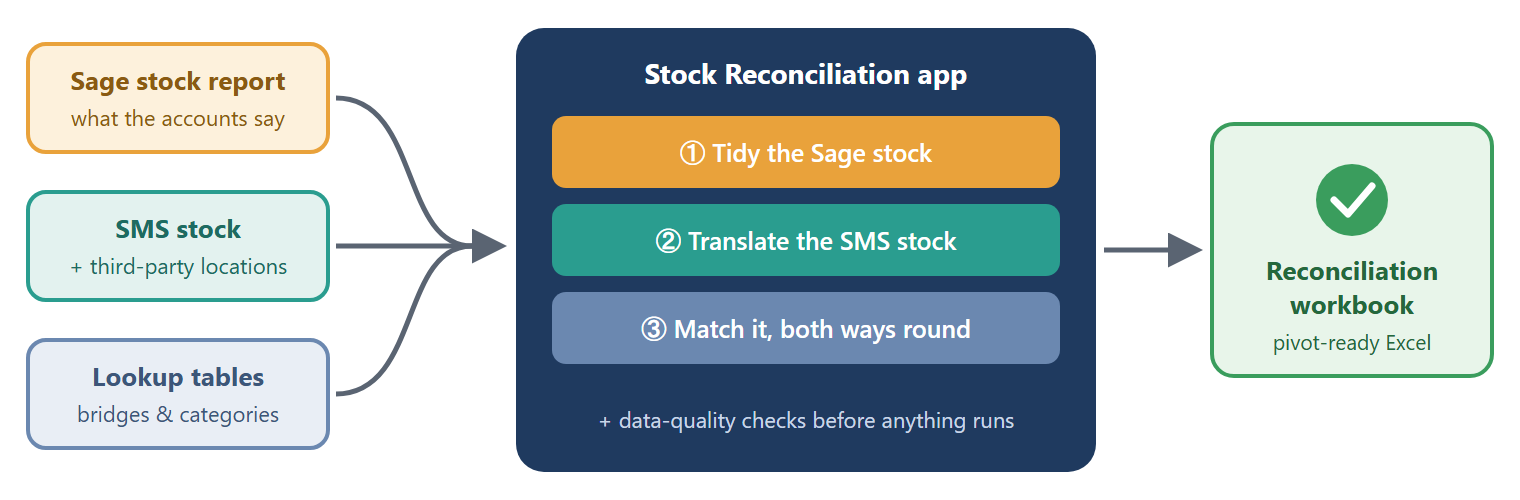
The app then does three things:
1. Tidy the Sage stock. The Sage report lists every transaction, with a summary line for each item. The app keeps only the summary lines, gives each item a category from the start of its Item ID (Chocolate bars, Inclusions, Boiled Sweets, Fudge, Cereal Bars), totals it to one line per item and works out the unit cost as value divided by quantity.
2. Translate the SMS stock. This is where the real work is. The app combines the warehouse and third-party stock into one list. For every line it reads the part number to flag whether the item is stock, work in progress or damaged, looks up its category, then runs it through the two bridges, first by part number and then by description, so that its name matches the Sage Item ID. Finally it totals the quantities.
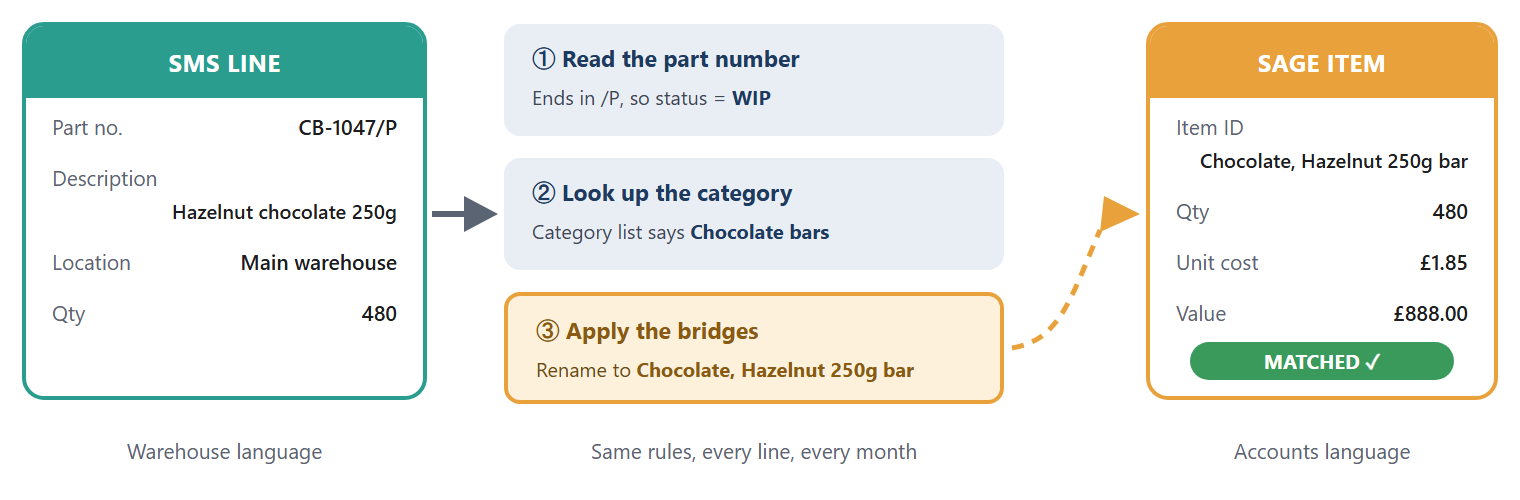
Think of it as a translator with the dictionary open who never gets bored. Every line, every month, the same rules.
3. Match it, both ways round. A match run in one direction only tells you half the story. Start from the warehouse and you will find everything on the shelves that the accounts are missing, but you will never notice stock that is in the books and not on the shelves, because you never go looking for it. So the app runs both.
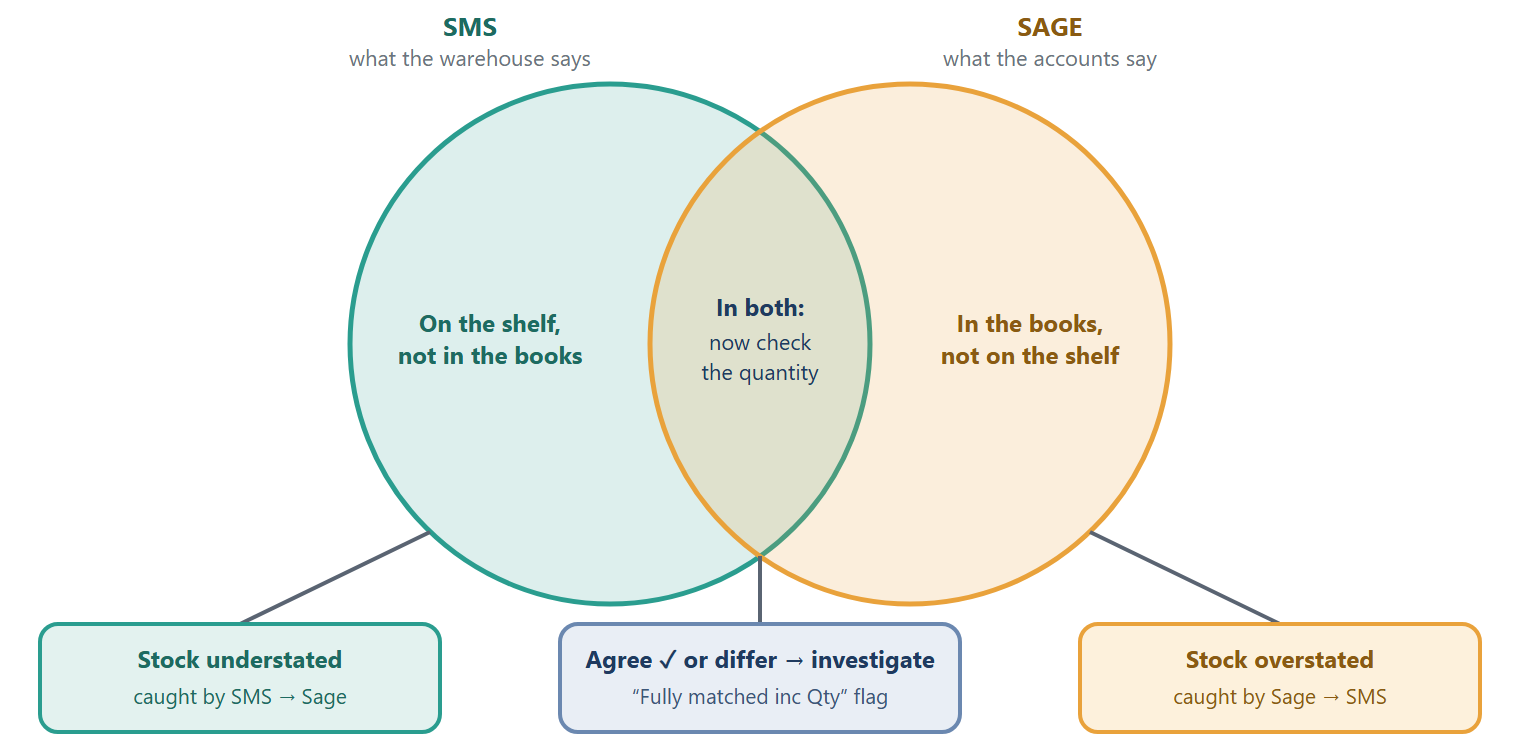
SMS → Sage gives every warehouse line its Sage quantity, unit cost and value, flagged as matched or not. Sage → SMS gives every Sage item its warehouse quantity, flagged as matched, and as fully matched only if the quantities agree as well.
Before any of that runs, the app checks the inputs and raises warnings: a lookup table with the same name listed twice, a description given two different categories, stray total rows sitting underneath a table. The result then downloads as an Excel file laid out for a pivot table, with the same columns as the old workbooks, so the review afterwards feels familiar.
How I built it
Same approach as payroll. I worked with Claude, an AI assistant, and under the bonnet the result is a small Python app with a simple web screen. This time I had a head start, because the rules were already written down: in the Power Query steps.
Start from what you already have. Power Query records every step you click in its own language, called M, and you can copy all of it from the Advanced Editor. Rather than describe the logic from scratch, I gave Claude the M code from both workbooks and asked it to rebuild them step for step, so the new app would give the same answers as the old ones.
Describe the job, not the code. I didn’t ask for any particular code. I described what I needed: here are the old workbooks, here is what each one produces, I want one input file that feeds both, and I want to be told about bad data rather than have it quietly absorbed. Claude worked out how to build it, and I tested what came back.
My prompts went like this:
“Here is the M code from the SMS to Sage workbook. Rebuild each step in Python, in the same order, and explain in plain English what each step does so I can check you have understood it.”
“Now do the same for the Sage to SMS workbook. Where the two workbooks do the same thing, use the same code for both, but keep any differences between them.”
“I want a single Excel workbook to feed both reconciliations. Build me a blank template with a tab for each input and the correct column headings.”
“Before the reconciliation runs, check the lookup tables for anything listed twice and tell me which items are affected, rather than picking one.”
The real prompts had more detail but all followed the same shape.
Test it to the unit. Both workbooks still held the results from their last refresh, which gave me something to test against. The cleaned SMS table tied exactly: the same 4,537 lines and the same 407,984 units. On the SMS → Sage side, the Sage value, the matched value and the number of matched items all tied exactly too. Where a number didn’t tie, I didn’t accept an explanation until I could point to the line that caused it.
Keep the rules where the finance team can see them. The bridges, categories and locations live in the input workbook, not in the code. When a new product turns up with a different name in each system, the finance team add a line to the bridge table, exactly as they did before.
What tripped me up
Two things, and neither was really a coding problem. Both were the data.
The item that counted twice. When I re-ran the full reconciliation, one item was out by about 1,125 units. It turned out the bridge table listed the same stock item twice, once with a converted name and once with a blank. Anyone who has used VLOOKUP would expect the first match to win. But Power Query and the app both join tables the way a database does, which brings back every match, so the stock line split in two and its quantity was counted twice. The old workbook would have done exactly the same on its next refresh; the duplicate had simply crept in since it was last run.
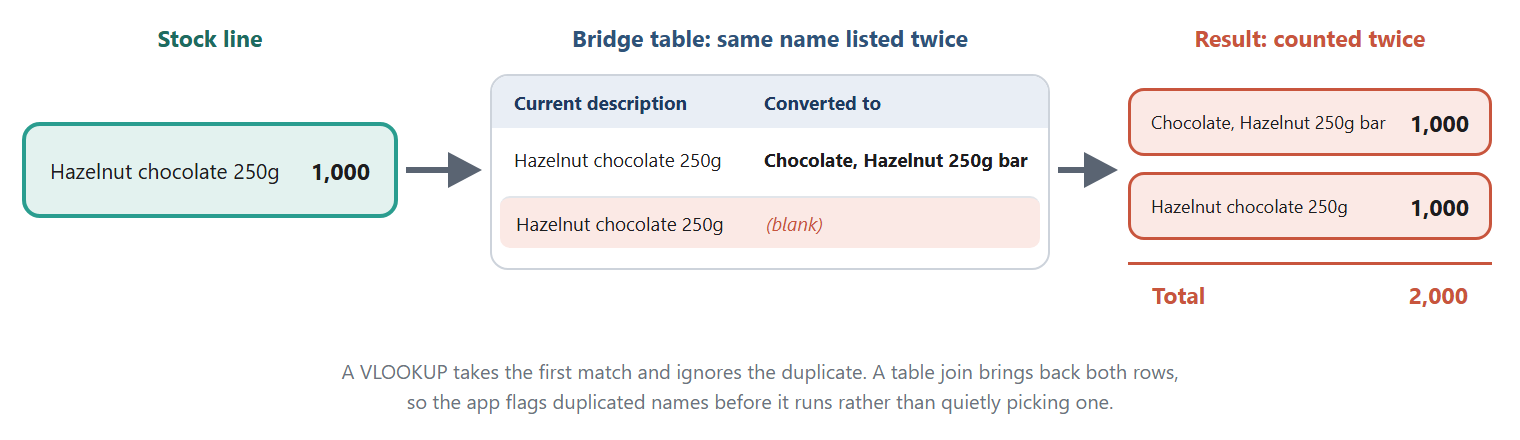
The fix was to delete the blank duplicate. The lasting lesson was to make the app check every lookup table for duplicates before it runs and name the items affected, so the next one is caught on day one.
A word about data
Stock data is less personal than payroll, but it is still commercially confidential: what the business holds and what it cost. The same rule applies as before. I used AI to build the app, but the stock files are processed by the code on my own computer, not by an AI.
The result
The monthly routine is now five steps: paste the Sage, SMS and third-party exports into the input workbook, upload it, read the data-quality warnings, choose the direction, and download the reconciliation.
But again, the bigger win isn’t speed. The logic that lived in dozens of query steps is now written out in one place, with plain-English notes against each step. The quiet errors (a name listed twice, a product nobody categorised, a total row pasted under the data) are now flagged loudly before they reach the numbers. And the finance team still own the dictionary: the app does the translating; a person keeps the bridges up to date.
Your first step
If you already have a process built in Power Query, you are further along than you think. The Advanced Editor holds a complete, step-by-step record of your rules. Copy it out and read through it. If you can explain each step in plain English, that is your specification. If you can’t, that is worth knowing too.
And before you trust any rebuild, make sure you have the old results to test against. Matching last month’s numbers to the unit is the only proof that counts.
Up next will be many finance people’s nemesis the cash flow forecast.